

Trade Assistant MT4 10.32 is a manual-trade management panel that replaces MT4’s clunky right-click menus with one clean control center, and if you manage trades by hand, it is the upgrade that actually changes your daily workflow. Developed by Evgeniy Kravchenko, this isn’t an EA: it doesn’t decide trades for you. Instead, it gives manual traders speed, precision, and professional-grade risk management from a single panel. This review breaks down every feature category, how it fits scalping and swing workflows, and, importantly, which of its 7 trailing stop modes you should leave switched off.
| TL;DR | |
|---|---|
| Product | Trade Assistant MT4 10.32 (developer: Evgeniy Kravchenko) |
| Type | Manual trade-management panel, not an EA; it executes your decisions faster |
| Platform | MT4 and MT5; works on real accounts and demos |
| Best for | Manual scalpers (XAUUSD M1) and swing traders (H4) who place and manage orders themselves |
| Key caveat | 2 of the 7 trailing stop modes (Fractal and Parabolic SAR) trigger too early on live charts, use ATR-based trailing instead |
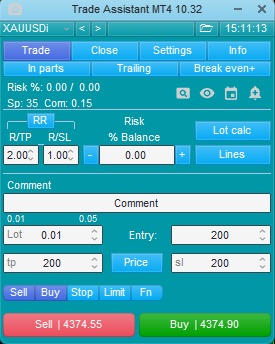
What Is a Trade Panel Like Trade Assistant MT4 10.32?
A trade panel is an overlay utility for MetaTrader that consolidates order entry, position management, and risk controls into one interface, designed for traders who want trading-desk speed without giving up manual control.
A trade panel (or one-click trading panel) is a chart-attached utility that lets traders place, modify, and close orders through buttons and drag controls instead of the platform’s standard order dialogs, reducing execution time from several clicks to one.
OCO (One Cancels the Other) is an order arrangement in which executing one order automatically cancels its linked counterpart, commonly used to bracket a price with a stop order and a limit order so exactly one fills.
Trade Assistant 10.32 belongs to this category of manual-trade utilities, but bundles an unusually wide feature set into a single panel rather than requiring several separate tools.
What Features Does Trade Assistant MT4 10.32 Include?
The feature list covers the full life cycle of a trade, from entry to exit management:
- Instant market and pending orders, open positions or queue breakout/retracement orders in one tap.
- One-tap lot sizing with built-in R/R calculation, size positions against your risk without manual pip-value math.
- Visual stop-loss and take-profit placement, drag SL/TP levels directly on the chart instead of typing prices into a dialog.
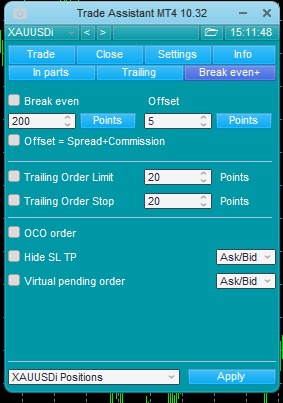
- 7 different trailing stop modes, Fractals, Moving Average, Parabolic SAR, ATR, and more.
- Breakeven triggers, automatically move stops to entry once a trade moves your way.
- OCO orders, pair orders so one cancels the other when filled.
- Partial position closing, bank part of a position while letting the rest run.
How Does It Compare to MT4’s Built-In Order Tools?
The default MT4 workflow was never designed for fast manual management, that gap is exactly what this panel fills.
| Task | Default MT4 workflow | Trade Assistant MT4 10.32 |
|---|---|---|
| Placing an order | Right-click → New Order → fill dialog → send | One tap on the panel |
| Setting SL/TP | Type exact prices into fields | Drag levels visually on the chart |
| Position sizing | Manual lot/pip-value calculation | One-tap lots with built-in R/R calculation |
| Trailing stops | One fixed-point trailing mode | 7 modes (ATR, MA, Fractals, PSAR, and more) |
| OCO orders | Not natively supported | Built in |
| Partial closes | Reverse-order workaround | One-tap partial close |
How Does It Fit Scalping and Swing Workflows?
Because everything is one tap away, the panel adapts to very different trading rhythms.
- Scalping XAUUSD on M1: instant market orders and one-tap lots matter most, seconds of hesitation are the difference between a fill and a missed price.
- Holding swing positions on H4: visual SL/TP placement, breakeven triggers, and ATR trailing do the routine management so you check in on your schedule.
It works on MT4 and MT5, on real accounts and demos alike, so you can learn it without risking capital.
Which Trailing Stop Modes Should You Avoid?
This is the one honest warning that matters more than any feature list.
⚠️ What Nobody Tells You: Trade Assistant 10.32 is feature-packed, but 2 of its 7 trailing stop modes (Fractal and Parabolic SAR) trigger too early on live charts, you’ll get stopped out only for price to resume. Stick to ATR-based trailing and keep the rest as backup.
A trailing stop is a stop-loss that automatically follows the market price at a set distance or volatility-based interval, protecting accumulated profit while letting a winning trade continue to run.
ATR-based trailing adapts that distance to current volatility, which is why it behaves better on live charts than structure-based modes (Fractals) or trend-following indicators (Parabolic SAR) that react to every minor swing.
Who Should Use Trade Assistant MT4 10.32?
It suits a specific kind of trader, and is unnecessary for another:
- Manual scalpers who need order entry measured in taps, not clicks
- Swing traders who want automated stop management (breakeven, trailing) without full automation
- Traders running bracket-style tactics who need OCO and partial closes as first-class features
- Not for: traders looking for a fully automated EA, this panel deliberately leaves every decision to you
Risk note: trading involves substantial risk. No management tool changes the risk of the market itself, test Trade Assistant on a demo account first, and never trade with money you cannot afford to lose.
If you’ve been managing trades the slow way, Trade Assistant MT4 10.32 is the rare upgrade that pays for itself in saved clicks and avoided mistakes, provided you keep Fractal and Parabolic SAR trailing switched off and let ATR do the following.


