Third-party product
Advanced Gold Trading EA with Prop Firm Protection
TL;DR
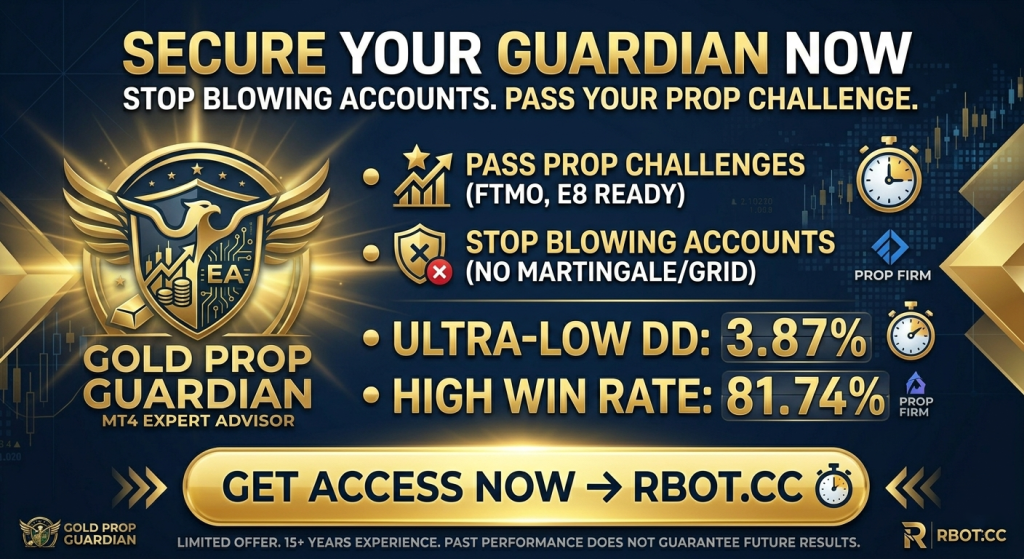
MT4 gold EA built around prop-firm-style drawdown protection, trading XAUUSD on H1, H4 and Daily. Vendor-reported performance; not independently verified.
No official listing has been supplied for this product.
Source information only
Product details are sourced from the publisher. RBOT.CC has not independently verified performance claims.
This page describes a third-party product. RBOT.CC is not the developer unless explicitly stated. Verify all claims before use.
Gold Prop Guardian V4.0 employs a multi-layered approach combining trend detection, support/resistance analysis, and momentum indicators to identify high-probability gold trading opportunities. The strategy focuses on capturing medium to long-term trends while filtering out market noise through multiple confirmation mechanisms. Built-in prop firm compliance rules ensure drawdown stays within typical funded account limits.
Comprehensive risk controls including maximum daily drawdown limits, per-trade risk percentage, and automatic position sizing based on account equity. The Guardian protection module actively monitors exposure and can pause trading during high-volatility news events. Built-in breakeven and trailing stop features lock in profits while giving trades room to breathe.
Primary: XAUUSD (Gold) on H1, H4, Daily. Secondary: XAGUSD (Silver) on H1 and above.
To ensure smooth setup, we provide two installation methods:
⚡ Method 1: One-Click Auto-Installation (Recommended)
1. Extract the downloaded zip package.
2. Double-click quick_install.bat.
3. Confirm your MT4/MT5 path (the script auto-detects it; press Enter). The script automatically deploys the EA (.ex4/.ex5) and presets (.set) into the correct folders, and launches your terminal.
🛠️ Method 2: Manual Installation
1. In MetaTrader, go to File > Open Data Folder.
2. Copy the EA into MQL4/Experts (or MQL5/Experts) and preset files into MQL4/Presets.
3. Right-click Expert Advisors in the Navigator panel and select Refresh.
⚙️ Critical Configuration:
Enable "Allow Algo Trading" in the EA's Common tab and make sure the master Algo Trading button at the top toolbar is Green.
For video demonstrations and troubleshooting, visit our step-by-step Installation Guide.
For algorithmic and automated EA trading, we strongly recommend IC Markets (Raw Spread Account). It is widely recognized as the industry benchmark for Expert Advisors for several critical reasons:
• Raw Spreads from 0.0 Pips: Interbank liquidity from 25+ Tier-1 providers with average EUR/USD spreads of 0.1 pips, drastically reducing transaction costs and execution friction for EAs.
• Ultra-Low Latency & Fast Execution: Trading servers are hosted in the Equinix NY4 (New York) and LD4 (London) financial data centers with dedicated optical cross-connects, delivering sub-millisecond execution speeds vital for scalping EAs.
• No Dealing Desk & No Trading Restrictions: True ECN/STP execution with no requotes, no minimum stop-loss distance, and full support for automated hedging, grid, and scalping robots.
• Flexible Leverage & Global Regulation: Up to 1:500 / 1:1000 leverage options with segregated client funds in AA-rated banks.
You can register a test demo or live account via the IC Markets Official Registration Link. We always suggest running the EA on an IC Markets demo account for at least 2 weeks first to evaluate live latency and spread conditions.
Yes. All core indicators and EAs on RBOT.CC are free to download directly without email walls, hidden paywalls, or account limits. If a third-party developer offers an optional commercial Pro version, it is clearly indicated with an external source link.
Yes. You can run them on unlimited demo and live accounts with any MetaTrader broker. We strongly recommend testing thoroughly on a demo account for at least 2 to 4 weeks to observe trade behavior and drawdowns before using real money.
For technical indicators and manual chart analysis, a standard home PC or laptop is completely sufficient.
For automated trading EAs running 24/5 uninterrupted, deploying on a high-speed Windows VPS is strongly recommended to eliminate trade disruptions from home internet drops or power outages.
We recommend HHOST Cloud Servers (Tier 3+ Data Centers in Hong Kong, Japan, and Singapore):
• Operating System: Choose Windows (available on the Standard $10/mo plan and above).
• Hardware Specs: 2 vCPU cores, 4 GB RAM, 40 GB SSD, and 100 Mbps bandwidth provide optimal performance for running multiple MetaTrader terminals simultaneously.
• Low Latency & High Uptime: High-capacity network route with 99.95% availability and sub-20ms latency to regional brokers.
You can configure and launch your server via the HHOST Windows Server Portal.
You can join our Telegram community (@wwwrbotcc) to ask setup questions, share backtests, and discuss strategy settings with the RBOT team and other algorithmic traders.
⚠ READ BEFORE USE
This EA is for educational and expert use only. Test on a DEMO account for at least 30 days before going live. By clicking “OK”, you acknowledge and accept the risks of trading.