TL;DR
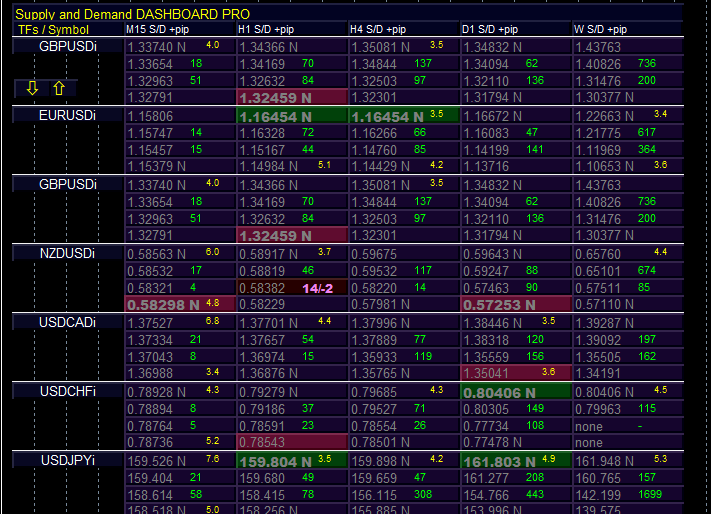
MT4 supply and demand dashboard covering multiple timeframes and symbols (forex majors and crypto) with auto-updating quotes. Third-party tool; performance not independently verified.
No official listing has been supplied for this product.
Source information only
Product details are sourced from the publisher. RBOT.CC has not independently verified performance claims.
This page describes a third-party product. RBOT.CC is not the developer unless explicitly stated. Verify all claims before use.
Monitors supply and demand zones across all timeframes and trading symbols. Generates actionable alerts for entry signals, zone breaks, trend reversals, and new zone appearances. Highlights nested supply/demand zones to identify high-confluence trading opportunities. Automatically updates price quotes and charts for all configured timeframes to ensure real-time data accuracy.
Alerts are designed to complement manual risk assessment; always use stop-loss orders aligned with zone boundaries. Position sizing based on account risk percentage (recommended 1-2% per trade). Avoid overtrading by focusing on high-confluence nested zones across multiple timeframes.
All major/minor forex pairs, cryptocurrencies, and indices | All timeframes
To ensure smooth setup, we provide two installation methods:
⚡ Method 1: One-Click Auto-Installation (Recommended)
1. Extract the downloaded zip archive.
2. Double-click quick_install.bat.
3. Confirm your MT4/MT5 path (the script auto-detects it; press Enter). The script automatically deploys indicator (.ex4/.mq4) and template (.tpl) files to the correct folders, and launches your terminal.
🛠️ Method 2: Manual Installation
1. In MetaTrader, go to File > Open Data Folder.
2. Copy indicator files into MQL4/Indicators (or MQL5/Indicators), and copy any .tpl files into the templates folder.
3. In the Navigator panel, right-click and select Refresh.
For video demonstrations and troubleshooting, visit our step-by-step Installation Guide.
For the most accurate chart signals and reliable backtesting, we recommend IC Markets (Raw Spread). Key reasons based on its institutional infrastructure include:
• Institutional Liquidity & Tight Spreads: Raw spreads from 0.0 pips aggregated from 25+ top-tier liquidity providers, ensuring indicators (such as MACD, Moving Averages, and Oscillators) calculate true interbank pricing without artificial price spike distortions.
• Deep Tick History: Access comprehensive historical market data across Forex majors, Gold (XAUUSD), Indices, and Cryptos on MT4 and MT5.
• Zero Trading Restrictions: Full freedom to apply any technical strategy, scalping method, or custom indicator setup.
You can open a demo or live trading account via the IC Markets Official Portal to test indicators with real institutional feeds.
Yes. All core indicators and EAs on RBOT.CC are free to download directly without email walls, hidden paywalls, or account limits. If a third-party developer offers an optional commercial Pro version, it is clearly indicated with an external source link.
Yes. You can run them on unlimited demo and live accounts with any MetaTrader broker. We strongly recommend testing thoroughly on a demo account for at least 2 to 4 weeks to observe trade behavior and drawdowns before using real money.
For technical indicators and manual chart analysis, a standard home PC or laptop is completely sufficient.
For automated trading EAs running 24/5 uninterrupted, deploying on a high-speed Windows VPS is strongly recommended to eliminate trade disruptions from home internet drops or power outages.
We recommend HHOST Cloud Servers (Tier 3+ Data Centers in Hong Kong, Japan, and Singapore):
• Operating System: Choose Windows (available on the Standard $10/mo plan and above).
• Hardware Specs: 2 vCPU cores, 4 GB RAM, 40 GB SSD, and 100 Mbps bandwidth provide optimal performance for running multiple MetaTrader terminals simultaneously.
• Low Latency & High Uptime: High-capacity network route with 99.95% availability and sub-20ms latency to regional brokers.
You can configure and launch your server via the HHOST Windows Server Portal.
You can join our Telegram community (@wwwrbotcc) to ask setup questions, share backtests, and discuss strategy settings with the RBOT team and other algorithmic traders.
⚠ READ BEFORE USE
This indicator is for educational and expert use only. Test on a DEMO account for at least 30 days before going live. By clicking “OK”, you acknowledge and accept the risks of trading.