Third-party product
Professional Supply & Demand Trading System for MT4 — Institutional-Level Zone Detection with Momentum Filter
TL;DR
MT4 supply and demand system with color-coded zone detection, a momentum filter and a signal dashboard for forex majors and gold. A complete framework, not a standalone EA.
No official listing has been supplied for this product.
Source information only
Product details are sourced from the publisher. RBOT.CC has not independently verified performance claims.
This page describes a third-party product. RBOT.CC is not the developer unless explicitly stated. Verify all claims before use.
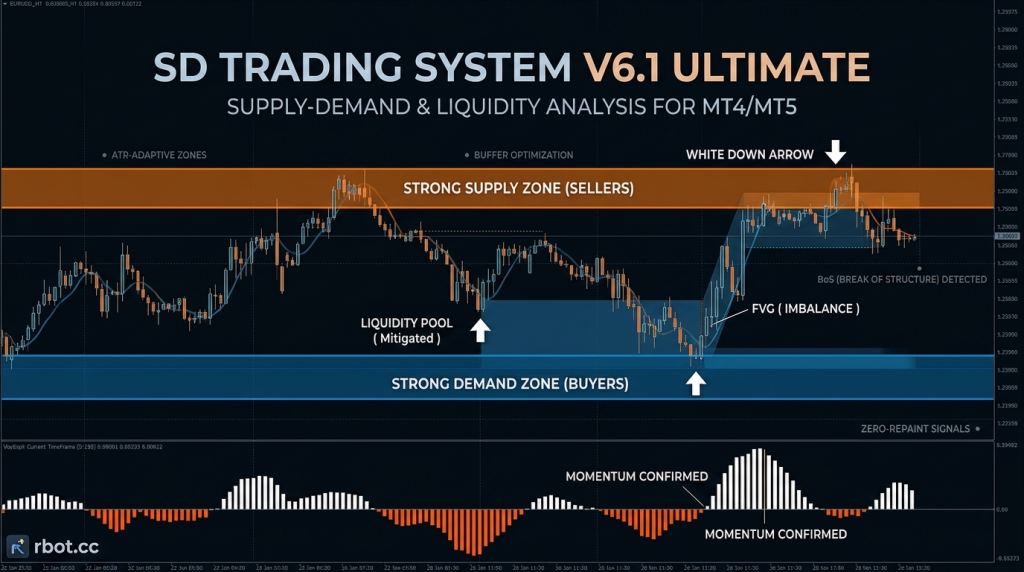
The SD Trading System V6.1 Ultimate uses a Smart Money Concepts (SMC) framework with a four-step confirmation flow: 1. Zone Detection: Algorithm identifies ATR-adaptive Supply (orange) and Demand (blue) zones on the chart. These are not static lines — they widen/tighten based on current volatility to maintain appropriate buffers. 2. Liquidity Sweep: Before firing a signal, the system looks for liquidity pool mitigation — price briefly piercing the zone to trigger retail stops, confirming that institutional orders have been filled. "Liquidity Pool (Mitigated)" labels appear at these points. 3. Confluence Signal (The Arrow): White arrows appear only when three conditions align simultaneously: (a) price is within a validated S/D zone, (b) a Break of Structure (BoS) is detected on the current timeframe, and (c) internal price action reversal patterns (engulfing, pin bar) confirm the turn. 4. Momentum Confirmation Filter: A modified MACD/Awesome Oscillator histogram in the sub-chart acts as the final gate. The signal is only activated when the histogram crosses zero and its color matches the arrow direction (white for buy, orange for sell). Bar height reflects conviction strength. Stop-loss is placed outside the zone boundary with a volatility-adjusted buffer gap. Take-profit targets the opposing S/D zone or the nearest FVG (Fair Value Gap) imbalance, typically yielding 1:3 or better R:R. A trailing mechanism follows the moving average line once price reaches 1x risk.
Hard stop-loss placed outside supply/demand zone boundaries. Take-profit targets the next opposite zone. Typical R:R of 1:3 or better. Systematic drawdown protection with position sizing based on account equity.
.ex4 for MT4 or .ex5 for MT5).tpl)quick_install.bat)quick_install.bat.MQL4/Indicators (or MQL5/Indicators), and copy any .tpl files into the templates folder.Yes. All core indicators and EAs on RBOT.CC are free to download directly without email walls, hidden paywalls, or account limits. If a third-party developer offers an optional commercial Pro version, it is clearly indicated with an external source link.
Yes. You can run them on unlimited demo and live accounts with any MetaTrader broker. We strongly recommend testing thoroughly on a demo account for at least 2 to 4 weeks to observe trade behavior and drawdowns before using real money.
You can join our Telegram community (@wwwrbotcc) to ask setup questions, share backtests, and discuss strategy settings with the RBOT team and other algorithmic traders.
⚠ READ BEFORE USE
This indicator is for educational and expert use only. Test on a DEMO account for at least 30 days before going live. By clicking “OK”, you acknowledge and accept the risks of trading.